

On-Demand Mode
On-demand mode automatically pauses your sandbox after a configurable idle period and resumes it on access. Ideal for low-traffic AI assistants, webhook-based IM integrations, and scheduled tasks. Zero billing while paused.Launching an On-Demand Sandbox
CLI
--mode node.
Manual Pause and Resume
CLI
Runtime Configuration
CLI
How It Works
- Idle detection — An agent daemon inside the sandbox periodically checks OpenClaw session activity and writes status to
/tmp/.novitaclaw-status.json. - Auto-pause — The server-side idle monitor reads the agent status. After 2 consecutive idle checks, the sandbox is automatically paused.
- Auto-resume — Incoming webhook requests or Web UI access automatically resume a paused sandbox.
- Cron pre-wakeup — The scheduler scans paused sandboxes for upcoming cron schedules and resumes them ~120 seconds before the next job fires, ensuring cron jobs run on time.
Checking Status
CLI
status command still returns full URL information (read from the database without connecting to the sandbox), so scripts can store addresses without triggering a resume.
Configuring Models
Your instance is pre-configured with a Novita-hosted model out of the box. To change the models your agent uses, navigate toSettings → Config, click Raw to switch to Raw JSON5 view, then click the reveal button next to “secrets redacted” to show the full config.
Update the following two sections:
Step 1: Register the model under your provider
Add a new object to themodels array inside models.providers.novita:
JSON
Step 2: Set it as primary or fallback
Update themodel field under agents.defaults to reference your model using the provider/model-id format:
JSON
Connecting Channels
OpenClaw supports external messaging channels so your agent is reachable outside the Web UI. Channels are disabled by default and must be configured.Telegram
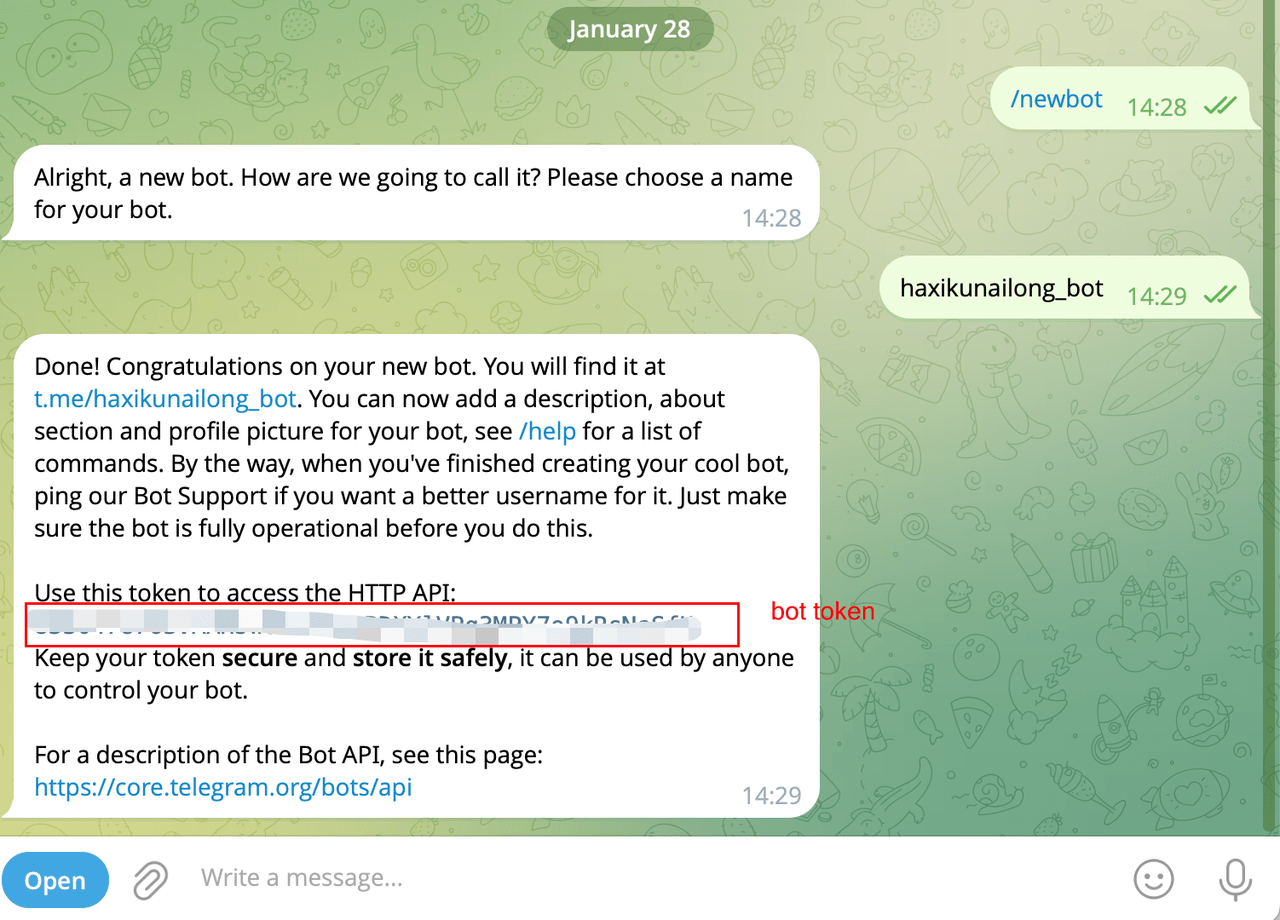
Connect your agent to Telegram as a messaging channel. Two connection modes are supported: Polling (default, long-poll — no public URL needed) and Webhook (HTTP push — best for on-demand sandboxes). Step 1: Create a Telegram Bot- Open Telegram and find @BotFather.
- Send
/newbotand follow the prompts to name your bot. - Copy the bot token BotFather provides.
Mode 1: Polling
Polling mode uses long-poll connections. No public URL required — simplest to configure.Polling mode is not recommended for on-demand sandboxes. When the sandbox auto-pauses, the connection drops and incoming messages are lost. Use Webhook mode for on-demand sandboxes.
CLI
Mode 2: Webhook
Webhook mode requires the sandbox to expose an HTTP port for receiving Telegram push events. Best suited for on-demand sandboxes — incoming webhook requests automatically trigger resume. The--webhook-url is the public URL assigned to your sandbox. Run the following command to retrieve it:
CLI
CLI
Optional Webhook Parameters
Pairing Flow
On first conversation, the bot replies with a pairing code:CLI
Mode Comparison
Slack
Connect your agent to Slack as a messaging channel. Two connection modes are supported: Socket (default, WebSocket — no public URL needed) and HTTP (Events API webhook — best for on-demand sandboxes).Mode 1: Socket
Socket mode uses a WebSocket connection. No public URL required — simplest to configure.Socket mode is not recommended for on-demand sandboxes. When the sandbox auto-pauses, the WebSocket connection drops and incoming messages are lost. Use HTTP mode for on-demand sandboxes.
CLI
Mode 2: HTTP
HTTP mode uses Slack Events API webhooks. Best suited for on-demand sandboxes — incoming webhook requests automatically trigger resume.CLI
Optional HTTP Parameters
Pairing Flow
On first conversation, the bot replies with a pairing code:CLI
Mode Comparison
Channel Status
novitaclaw status displays webhook URLs for all configured channels:
CLI
Feishu
Connect your agent to Feishu (Lark) as a messaging channel. Two connection modes are supported: Webhook (HTTP push) and Event (WebSocket long-poll).Prerequisites: Create a Feishu App
- Open the Feishu Open Platform, log in and click Create Custom App.
- On the Credentials & Basic Info page, copy: App ID (format:
cli_xxx) and App Secret. - Go to Permission Management, click Batch Import, and paste the following permissions:
JSON
- Go to App Capabilities > Bot and enable bot capability.
- Create a version and publish the app.
Mode 1: Webhook
Webhook mode requires the sandbox to expose an HTTP port for receiving Feishu push events. Best suited for on-demand sandboxes — incoming webhook requests automatically trigger resume. Additional credentials: On the Feishu Open Platform, go to Development Configuration > Events & Callbacks > Encryption Strategy and copy: Verification Token and Encrypt Key.CLI
- Select Request URL Configuration
- Enter the Webhook URL — get it via:
CLI
- Add event:
im.message.receive_v1
Mode 2: Event
Event mode uses a Feishu WebSocket long-poll connection. No public URL required — simplest to configure.Event mode is not recommended for on-demand sandboxes. When the sandbox auto-pauses, the WebSocket connection drops and incoming messages are lost. Use Webhook mode for on-demand sandboxes.
CLI
- Select Use Long Connection to Receive Events
- Add event:
im.message.receive_v1
novitaclaw status <SANDBOX_ID>) before saving, otherwise Feishu may fail to save the long connection configuration.
Optional Webhook Parameters
Pairing Flow
Feishu uses apairing strategy by default. On first conversation, the bot replies with a pairing code that must be approved via CLI:
CLI
Mode Comparison
Service Reliability
All core services in the sandbox are managed by systemd for production-grade reliability:
Crash auto-recovery: If the Gateway crashes repeatedly, the system automatically runs diagnostics, attempts repair, and restores the last known-good configuration from backup — no manual intervention required.
Config auto-backup: Every configuration write creates an automatic backup. If a bad config causes a crash, the recovery process restores from the most recent valid backup.